← All tutorials
Shortcuts · 7 steps
Use Back Tap
Launch a Cashtra shortcut with a tap on the back of your iPhone.
Select any screenshot to view it at full size.
-
Step 01
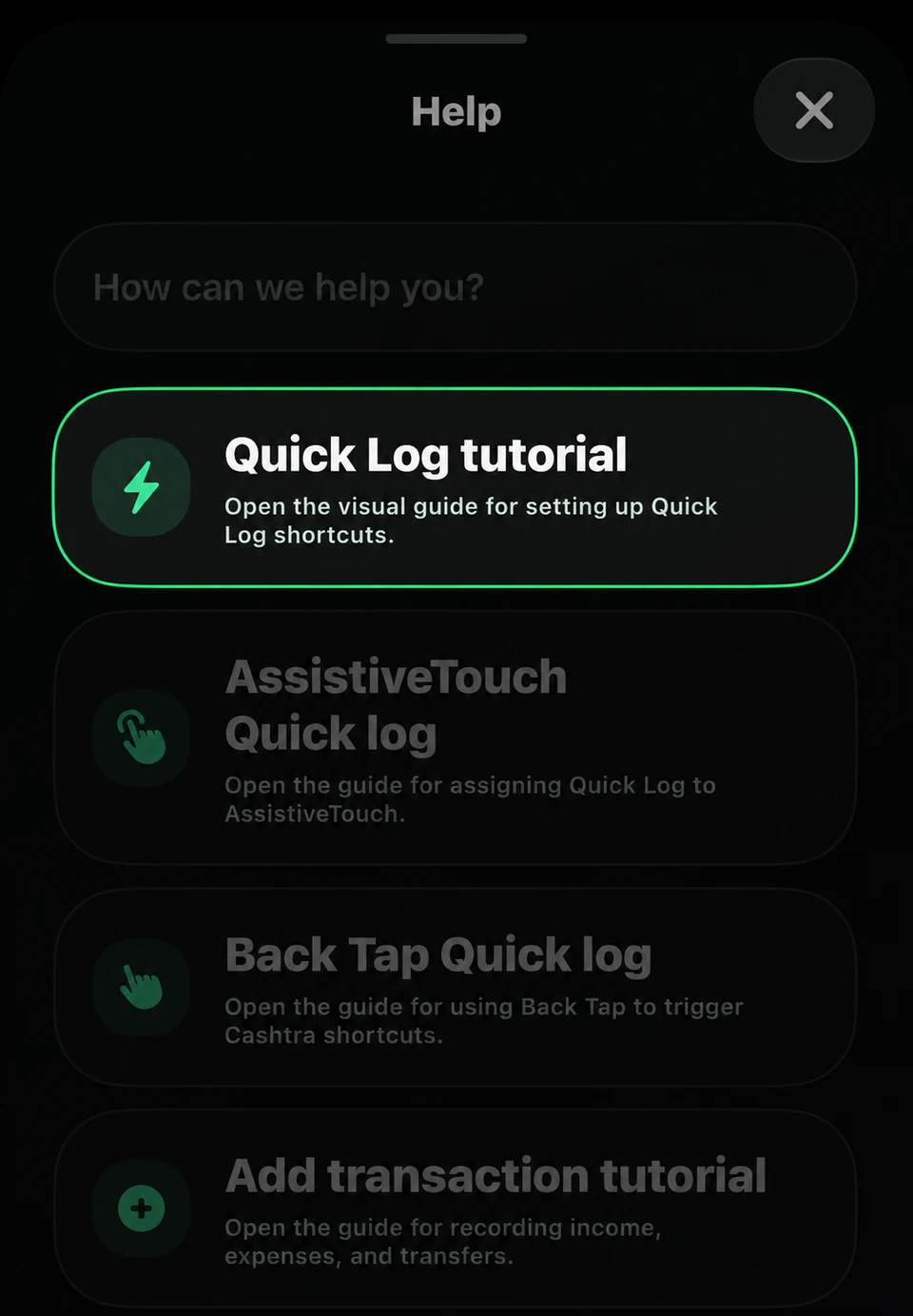
Make sure you've completed the "Use Quick Log" tutorial first.
-
Step 02
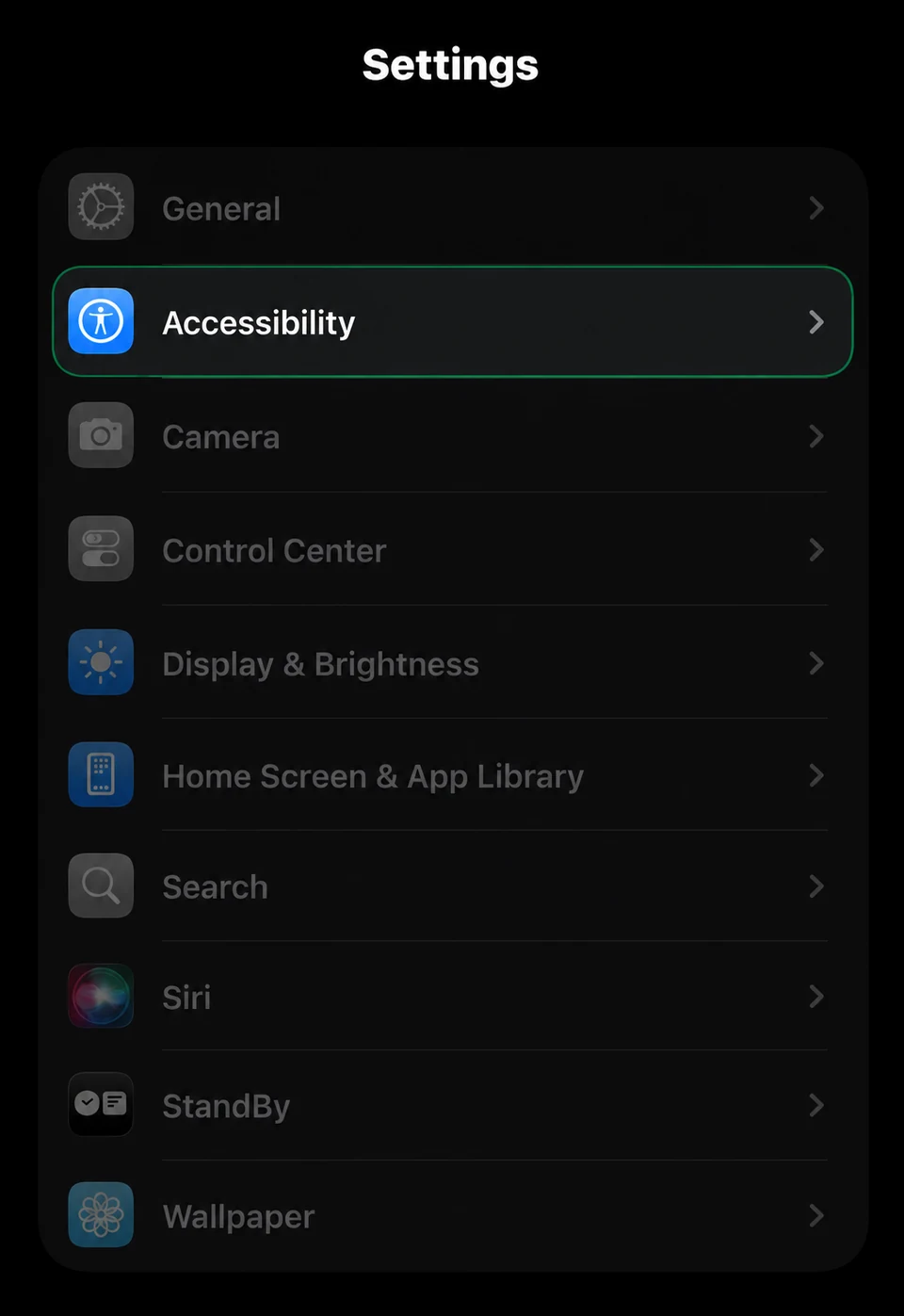
Open the iOS Settings app and tap Accessibility.
-
Step 03
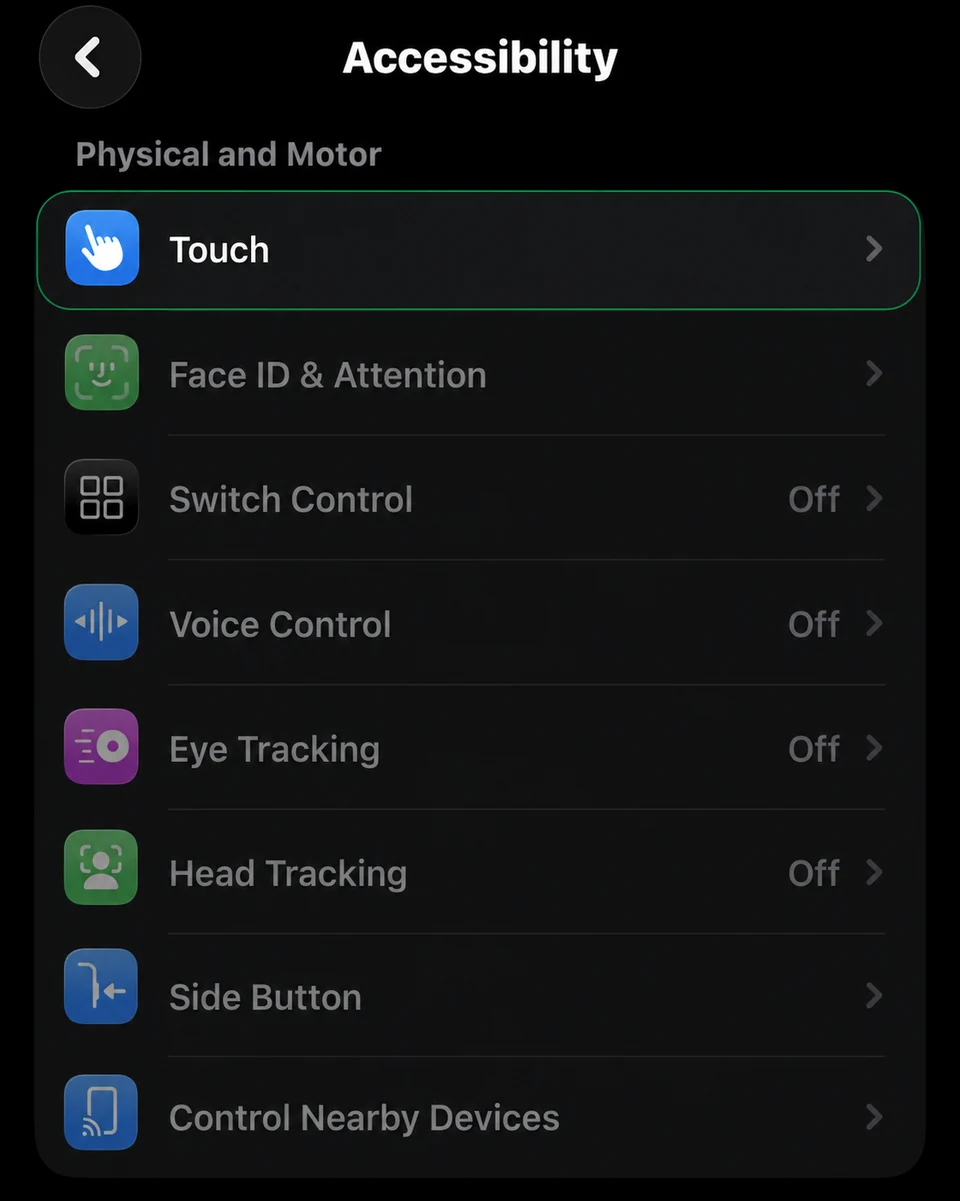
Under Physical and Motor, tap Touch.
-
Step 04
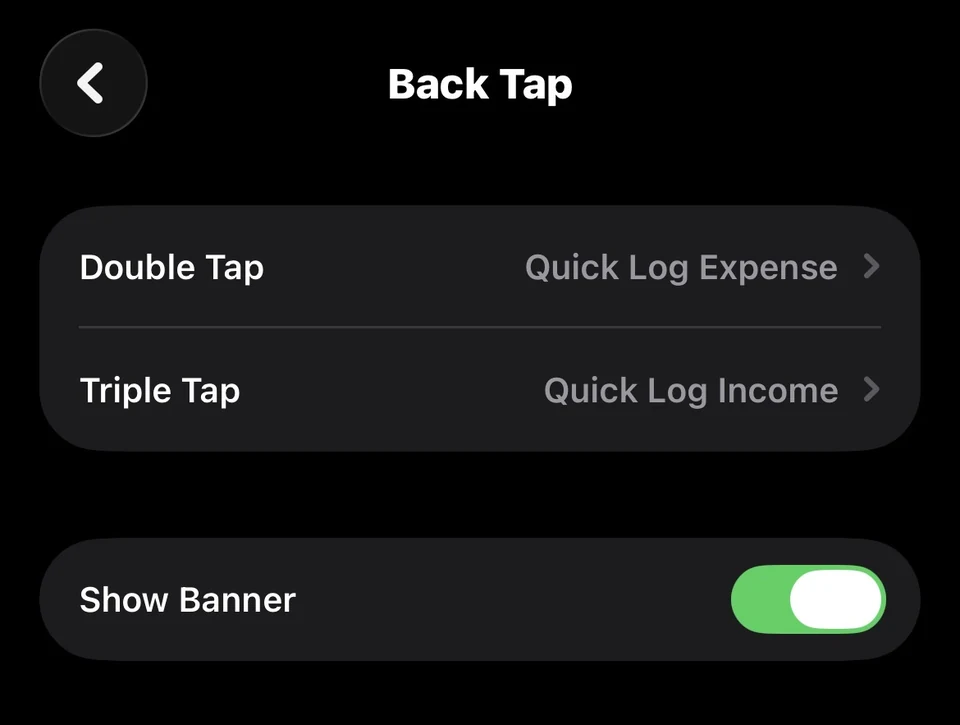
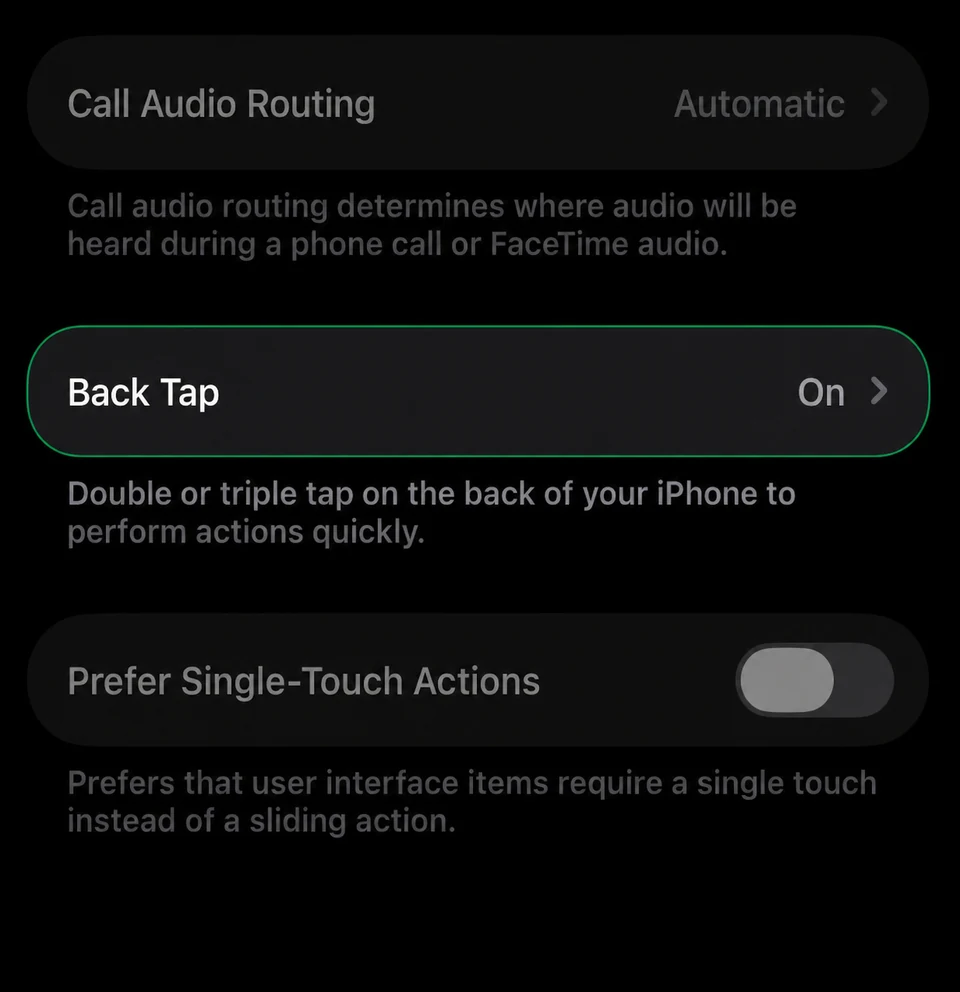
Scroll to the bottom and tap Back Tap.
-
Step 05
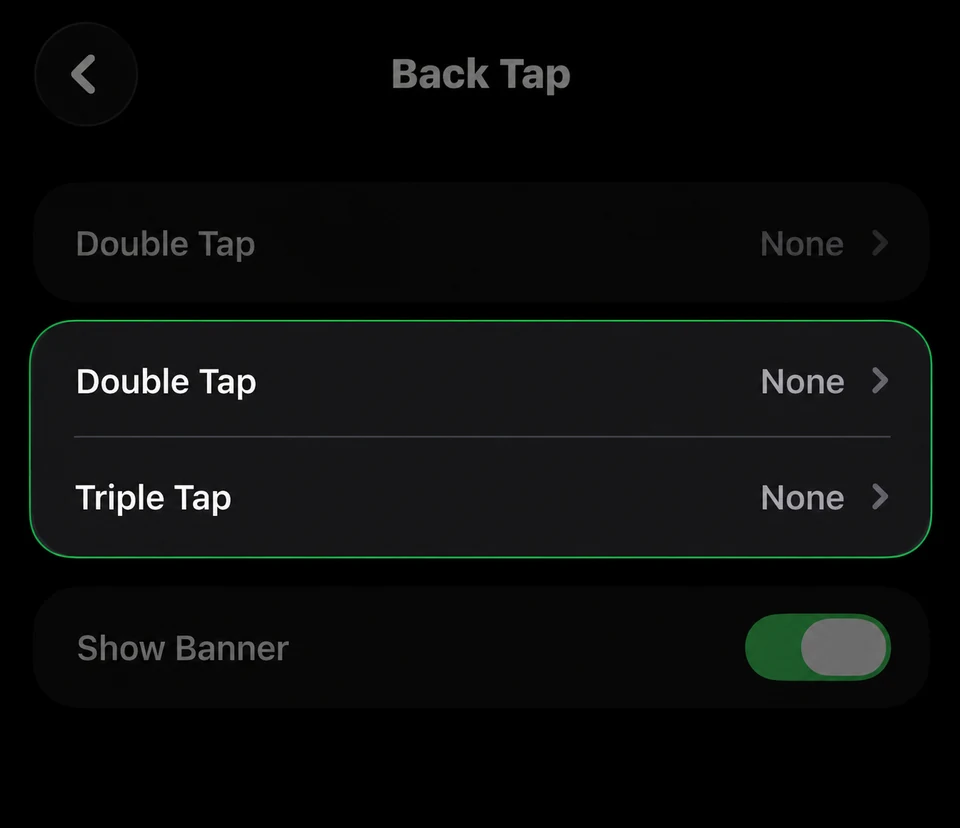
Select either Double Tap or Triple Tap.
-
Step 06
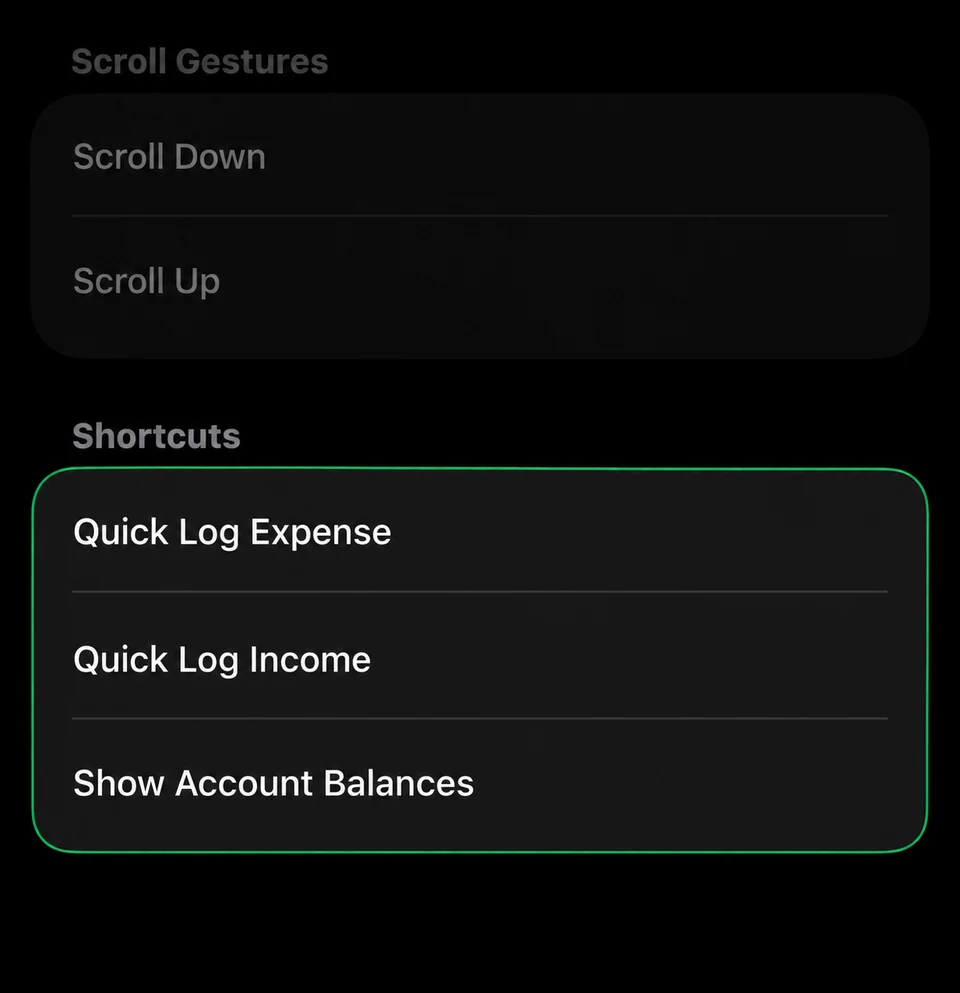
Scroll down to Cashtra Shortcuts and select your desired action.
-
Step 07
Repeat the process to assign another Back Tap shortcut.